

How do you connect to Exchange services?
This determines which certificate you need.
Over the internet
You open Exchange websites and services in a browser over an ordinary internet connection. This is the most common caseVia the universal connection scheme
Your organisation is connected to the Exchange through the universal connection scheme — over dedicated communication channelsNot sure which case is yours? If you simply open the Exchange website in a browser, it is Case 1. If your IT team set the connection up and you work over dedicated channels, check with them or contact Exchange technical support.
Choose your case — the relevant instructions will open.
Install the NCA certificates
Pick one method and follow the steps in its column. You do not need both.
Recommended
Install the Russian certificates
Works everywhere
Suitable for everyone. The certificates go into the system store, so every browser and application on the computer works
≈ 5 minutes
If you cannot install certificates
Switch to Yandex Browser
Web services only
The Russian certificates are already built into this browser — nothing to download or install. Handy when corporate policy forbids installing certificates
≈ 2 minutes
Yandex Browser is optional. If you installed the certificates using Method 1, your usual browser keeps working as before. Conversely, to download the certificates from Gosuslugi you do not need to switch browsers — the portal opens in any of them.
Install the Russian certificates
Open the Gosuslugi page
Gosuslugi is the official source of certificates from the National Certification Authority (NCA) of the Russian Ministry of Digital Development
Select your operating system
Download both files: the root certificate and the issuing (intermediate) certificate
Install the certificates
Follow the steps for your system
Restart your browser
Close it completely, open it again and go to the Exchange website. You should see no warnings
Step by step, by operating system
Switch to Yandex Browser
Install the browser
Yandex Browser — browser.yandex.com
Open Exchange websites and services in it
Nothing else is requiredThis covers web services only. Applications and integrations that connect to the Exchange directly (not via a browser) need the security certificate installed follow the steps.
For IT teams and integrations
If your systems connect to the Exchange programmatically, install the NCA root and issuing certificates into the trust stores of your servers and applications, not just on user workstations.
What to check
Component | What to do |
|---|---|
Windows servers | Import into the machine’s “Trusted Root Certification Authorities” and “Intermediate Certification Authorities” stores. For a fleet of machines, deploy via Group Policy (GPO). |
Linux servers | update-ca-certificates / update-ca-trust — see the commands above. |
Java applications | Import into the cacerts store of the JDK/JRE in use — separately for every installed version. |
Containers and images | Add the certificates to your base images and rebuild; make sure CI/CD publishes the updated images. |
Proxies, load balancers, gateways | Update the trusted root bundle on any device that terminates or inspects TLS. |
Mobile and desktop apps | If you use certificate pinning, update the pinned certificates and release a new version of the app. |
Java: importing into the trust store
keytool -importcert -trustcacerts \
-alias russian-trusted-root \
-file russian_trusted_root_ca.cer \
-keystore "$JAVA_HOME/lib/security/cacerts" \
-storepass changeit
Then repeat for the issuing certificate with a different -alias and restart the application.
Verifying the result
openssl s_client -connect www.moex.com:443 -servername www.moex.com </dev/null 2>&1 | grep -i "verify"Verify return code: 0 (ok) means the trust chain is built correctly.
Some internal Exchange services use certificates issued by Moscow Exchange’s own certification authority. If you work with those services, also install the Exchange CA root certificate — the file and instructions are provided by your manager or Exchange support.
Frequently asked questions
Install the Moscow Exchange CA certificate
Under the universal connection scheme, Exchange services are protected by certificates issued by the Moscow Exchange certification authority. The NCA certificates from the Gosuslugi portal are not needed in this case.
The MOEX_Root_CA.zip archive from the Exchange server. Save it to your Downloads folder and unpack it.
- MOEX Group Root CA.crt
- MOEX Group Office Sub CA.crt
Step by step, by operating system
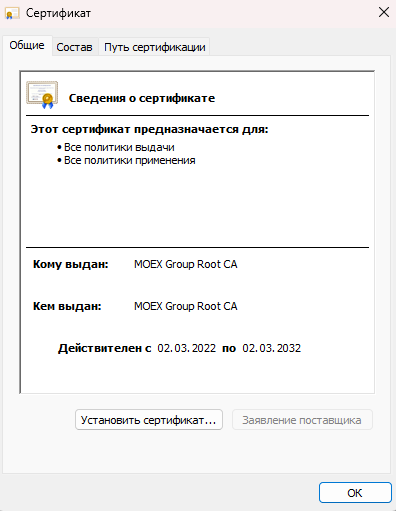
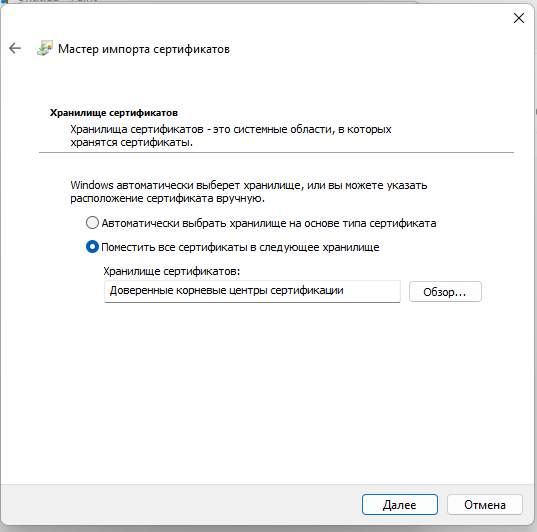
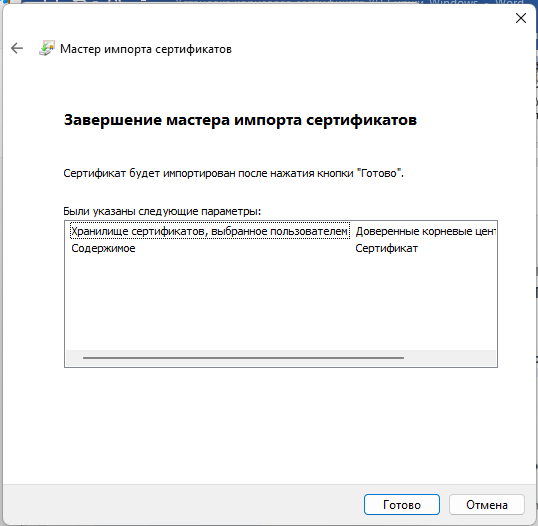
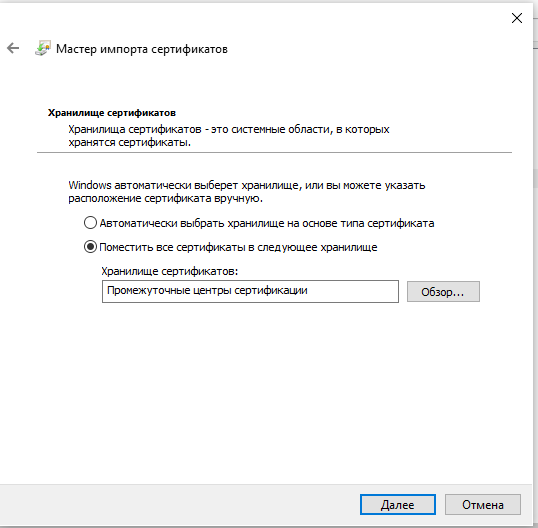
Final step for every system — clear your browser cache. Without it the browser may keep showing the warning even after the certificates are installed. Press Ctrl + Shift + Delete, choose “All time”, confirm and restart the browser.
Frequently asked questions
Need help
If your access is still not restored after installing the certificates, write or call us — we will help.
Official source of the certificates — gosuslugi.ru/crt. This page is updated as Exchange services move to NCA certificates.